How to Generate Alt Text in Shopify

Most Shopify store owners know alt text matters.

But writing it is where things slow down.

One product image is easy. Ten images are fine. But when your store has hundreds or thousands of product images, manual alt text becomes a job nobody wants to do.

So it gets delayed. Then new products get added. Then more images pile up.

We see the same pattern in SEO HERO AI Alt Text Generator setup responses: most merchants arrive with incomplete alt text coverage, and the biggest blocker is time.

Before long, your store may have missing alt text across product images and, depending on how your theme is built, theme files or uploaded files used across homepage sections, collection pages, blog posts, and other store content.

Quick check: Open one product in Shopify, click a product image, and check if the alt text field is filled in. If it says nothing useful, that image is missing context for shoppers and search engines.

In this guide, we’ll show you how to generate alt text in Shopify the right way. We’ll cover the manual method, the bulk method, the AI method, and the settings that help you avoid generic output.

The main workflow we recommend is using SEO HERO AI Alt Text Generator to review your image coverage, configure your alt text strategy, preview outputs, process missing alt text, and keep future new products covered with Auto-Pilot Agent.

What Alt Text Means in Shopify

Alt text, short for alternative text, is the written description attached to an image.

In Shopify, alt text can be added to product media. Shopify explains that alt text describes a media item, appears when media cannot load, helps assistive technology describe an image to visually impaired customers, and can support SEO. Shopify also recommends keeping it brief and descriptive, with a 512-character maximum and 125 characters or less recommended. You can read Shopify’s official guide here: Adding alt text to media.

A simple way to think about alt text is this:

Simple rule: If someone could not see this image, what would they need to know?

That does not mean every image needs a long sentence.

Some images only need a few words. Some decorative images may not need descriptive text at all. The goal is not to describe every pixel. The goal is to explain the image’s meaning in context.

Weak Alt Text Better Alt Text Why It Works
Product image Black leather ankle boot with side zipper and block heel It describes the product type, color, material, and visible details.
Shirt White linen button-up shirt with relaxed collar It gives shoppers and search engines real product context.
Image of mug Handmade ceramic coffee mug with blue glaze It removes filler words and describes what matters.

For a Shopify product image, strong alt text usually includes the product type and the most useful visible details.

The goal is not to make alt text sound clever. The goal is to make it clear, accurate, and useful.

Why Alt Text Matters for Shopify SEO and Accessibility

Alt text helps two groups at once.

First, it helps shoppers. A customer using a screen reader can understand what product image is being shown. That matters for accessibility, trust, and basic usability.

Second, it helps search engines. Google says it uses alt text, computer vision, and page content to understand an image. Google also warns against keyword stuffing and recommends useful, information-rich alt text that fits the page context. You can review Google’s image guidance here: Google Image SEO best practices.

Reality check: Alt text will not fix a weak product page by itself. It works best when your product title, description, image, filename, and surrounding page content all support the same topic.

For Shopify stores, image search can carry strong buying intent. A shopper searching for a specific product style, color, or material may already know what they want.

That is why product image alt text should be treated as part of your ecommerce SEO workflow, not as a tiny field to fill in later.

Benefit What It Means Shopify Example
Accessibility Helps people understand images when they cannot see them. A screen reader can describe a product image to a shopper.
Image SEO Gives search engines more context about your product photos. Google can better understand that an image shows a black leather ankle boot.
Better product data Keeps image descriptions cleaner across your catalog. Your team avoids vague image labels like “photo” or “product image.”
Store quality Makes your Shopify store feel more complete and maintained. New products launch with useful image descriptions instead of empty fields.

From our setup data: 86% of merchants selected “Improve SEO rankings” as a goal, but 46% also selected “Improve accessibility.” That is why good alt text should serve people first and search engines second.

Alt text is not a magic ranking button.

It will not repair slow pages, thin collection copy, duplicate product descriptions, or poor site structure.

But it is still worth doing because it improves how your images are understood. For image-heavy Shopify stores, that matters.

If your product title, page copy, image file, and alt text all point in the same direction, your store gives search engines a clearer signal.

Simple takeaway: Good alt text helps humans first. SEO is the bonus that comes from clear, accurate image context.

What Shopify Merchants Told Us During Setup

Most alt text advice online is generic.

We wanted to understand what Shopify merchants actually struggle with when they start working on image SEO. So we reviewed anonymized setup responses from merchants using SEO HERO AI Alt Text Generator.

Source: anonymized SEO HERO AI Alt Text Generator setup responses. Findings are rounded and store-specific details are removed.

The clearest pattern was simple: most stores do not have alt text fully handled.

83% had incomplete alt text coverage Most merchants had either some missing alt text or no product image alt text at all.
85% were beginner or intermediate in SEO That means the workflow needs clear guidance, not just a blank AI prompt.
68% said writing alt text takes too much time Time was the strongest pain point, even above missing coverage.

This changes how we think about Shopify alt text.

The problem is not only that merchants need to learn what alt text is. Many already know it matters. The real problem is that writing useful image descriptions across a growing product catalog takes too long.

That is why a good workflow needs more than one button. It needs setup, context, preview, bulk cleanup, and automation for future products.

What merchants wanted most

When merchants described their goals, SEO was the strongest driver. But it was not the only reason they cared about alt text.

Improve SEO rankings 86%
Increase organic traffic 70%
Rank in Google Images 58%
Save time on manual work 56%
Improve accessibility 46%

This is why we do not treat alt text as only an accessibility task or only an SEO task.

For Shopify merchants, it sits in the middle. It affects search visibility, image understanding, catalog quality, and the amount of repetitive work the team has to do.

The pain points explain the workflow

The top pain point was not “we do not care about alt text.” It was the opposite.

Merchants care, but the work is slow.

68% said writing alt text takes too much time.

52% said they are missing alt text on too many images.

30% said their image SEO is inconsistent.

25% said their team is not sure what good alt text looks like.

That is why the rest of this guide focuses on a safer workflow: fix missing alt text first, use product context, preview outputs, avoid overwriting strong existing descriptions, and only then automate new product uploads.

The features merchants cared about

The strongest feature interest was not surprising: merchants wanted help generating alt text in bulk. But the next signals were just as important.

Bulk alt text generation 43%
Alt Text Diversity 38%
AI-Agent Auto Pilot 30%
Hyper SEO 26%
SEO keyword controls 23%

Those feature interests map directly to the workflow we recommend.

Bulk generation handles the backlog. Alt Text Diversity helps avoid repetitive output. Auto-Pilot Agent helps keep future new products covered. SEO keyword controls help the AI use search context without turning alt text into keyword stuffing.

Practical takeaway: The real value is not “AI writes text.” The real value is turning a repetitive Shopify SEO task into a repeatable workflow with context, preview, and guardrails.

Where You Can Add Alt Text in Shopify

Most people think Shopify alt text only applies to product images.

That is the first gap.

Your Shopify store may have useful images in several places. Some are easy to edit inside the product admin. Others may live in theme files, uploaded files, page sections, or blog content.

The important part is knowing which images actually need a useful description.

Image Type Where It Shows Up Best Alt Text Approach
Product image Product pages, collections, product cards Describe the product type, color, material, and key visible detail.
Variant image Color, size, or style variants Include the product name and the variant detail, without repeating too much.
Collection image Collection pages or collection cards Describe the collection theme if the image helps shoppers understand the page.
Blog image Shopify blog posts and guides Describe what the image adds to the article section.
Theme image Homepage banners, promo blocks, custom sections Add alt text if the image carries meaning, such as a product promo or seasonal campaign.
Decorative image Dividers, background textures, layout graphics Use empty alt text if the image adds no useful meaning.

For product images, Shopify’s manual desktop flow is simple.

Open Products, choose a product, click the product media item, add the alt text, and save it.

That works well for a few images.

It does not work well for a store with hundreds of missing image descriptions.

Quick check: If you can fix your missing alt text in one sitting, manual editing is fine. If the task feels like a full-day project, you probably need a bulk or AI-assisted workflow.

This is where many Shopify merchants get stuck. The task is not confusing. It is just repetitive.

Product images need clear descriptions. Variant images need consistent naming. Theme images need a decision: is this meaningful or decorative? Blog images need context from the article.

That is why we do not recommend treating every image the same way.

Manual Editing Works for Small Catalogs

If your store has a small number of products, you can add alt text manually. This gives you the most control.

Manual editing is especially useful for best sellers, homepage hero images, collection banners, and product photos where the details really matter.

Bulk Workflows Help Larger Stores

Once your catalog grows, the workflow changes.

You need a way to find missing alt text, decide which images should be updated, and avoid overwriting strong descriptions that are already working.

That is why a safer bulk cleanup starts with missing alt text first. You can improve older alt text later, after the biggest gaps are fixed.

Fix Missing Shopify Alt Text Faster

Got hundreds of product images without useful alt text? SEO HERO AI Alt Text Generator helps you configure your strategy, preview outputs, and generate better descriptions without editing every image one by one.

Add Alt Text in Shopify With SEO HERO AI Alt Text Generator

This workflow is based on the same problems merchants told us about during setup: too much manual work, too many missing descriptions, inconsistent image SEO, and uncertainty about what good alt text should look like.

The fastest way to generate alt text in Shopify is to use a workflow built for Shopify products, not a generic image caption tool.

That is where SEO HERO AI Alt Text Generator comes in.

The app helps you review your image coverage, choose what image types to optimize, configure your alt text strategy, preview outputs, process missing alt text, and optimize future new products with Auto-Pilot Agent.

The goal is not to create random AI descriptions.

The goal is to generate useful Shopify alt text that matches the product, the image, the store language, the brand, and the SEO context.

Important: Do not turn on automation before you test the output. First configure your settings, run Live Preview, review the result, then process missing alt text or enable Auto-Pilot Agent.

Step 1: Complete the first-time AI setup wizard if it appears
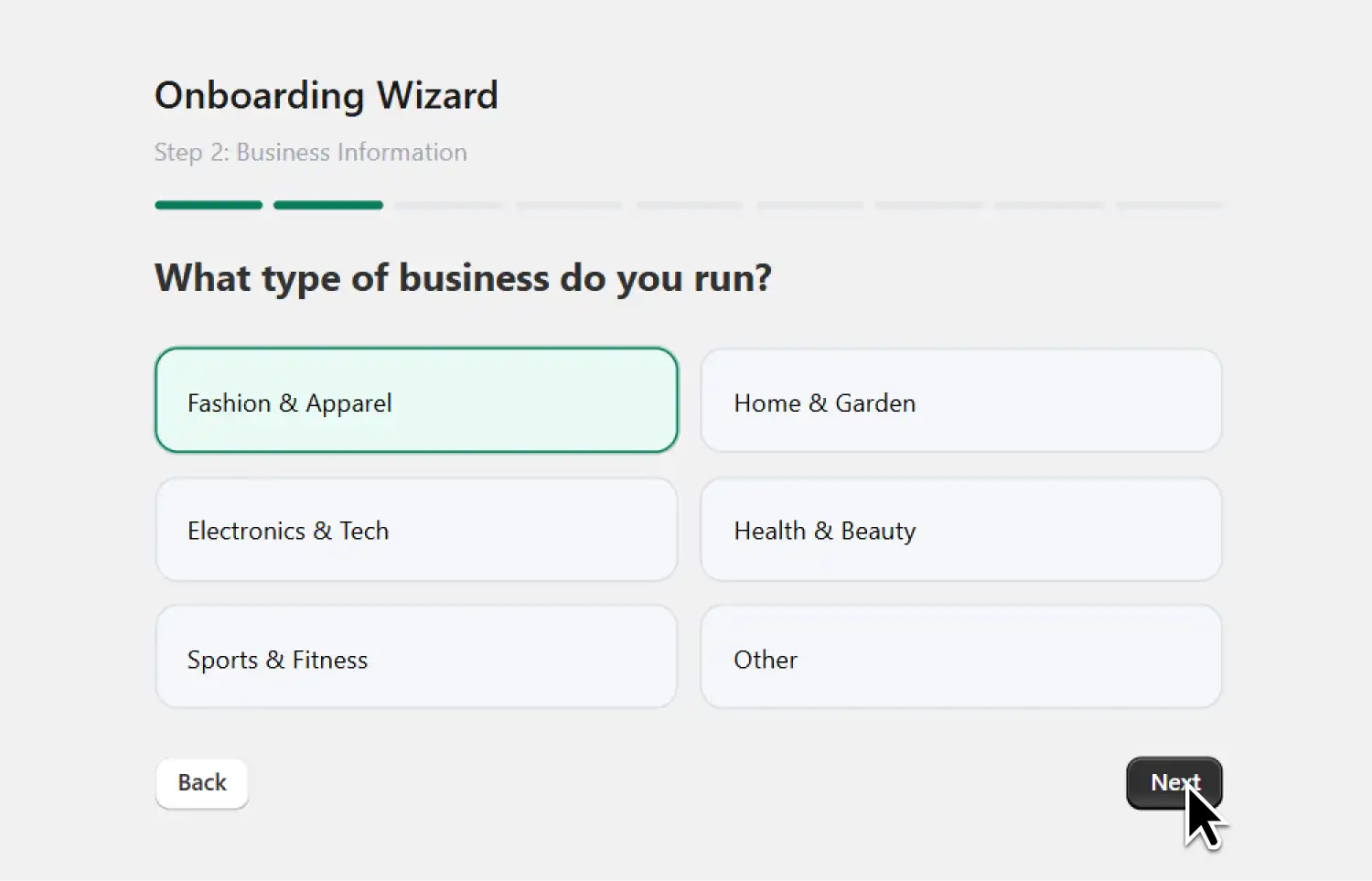
SEO HERO AI Alt Text Generator first-time setup wizard for Shopify alt text setup

If you are opening SEO HERO AI Alt Text Generator for the first time, you may see a guided setup wizard before the full Settings screen.

Use it to choose your alt text language, describe your business, select your SEO experience, identify your biggest image SEO challenges, choose your goals, and add brand and SEO keywords.

This gives the app better starting context before you generate alt text in bulk.

The setup wizard is a starting point. It does not replace the full Settings workflow.

After finishing the wizard, continue to Settings and review your Alt Text Strategy, SEO Context, Advanced Context, Image Scope, AI model, Live Preview, and Auto-Pilot Agent settings before publishing.

Step 2: Open Settings and review your app configuration

After the setup wizard, open SEO HERO AI Alt Text Generator from your Shopify admin and go to Settings.

Start with the App settings tab.

This is where you control how the AI writes alt text, what product data it can use, which images it should process, whether existing alt text should be overwritten, and whether Auto-Pilot Agent should run in the background.

Before generating anything in bulk, set your strategy first.

That gives the AI better instructions and helps you avoid generic output.

Step 3: Configure your Alt Text Strategy
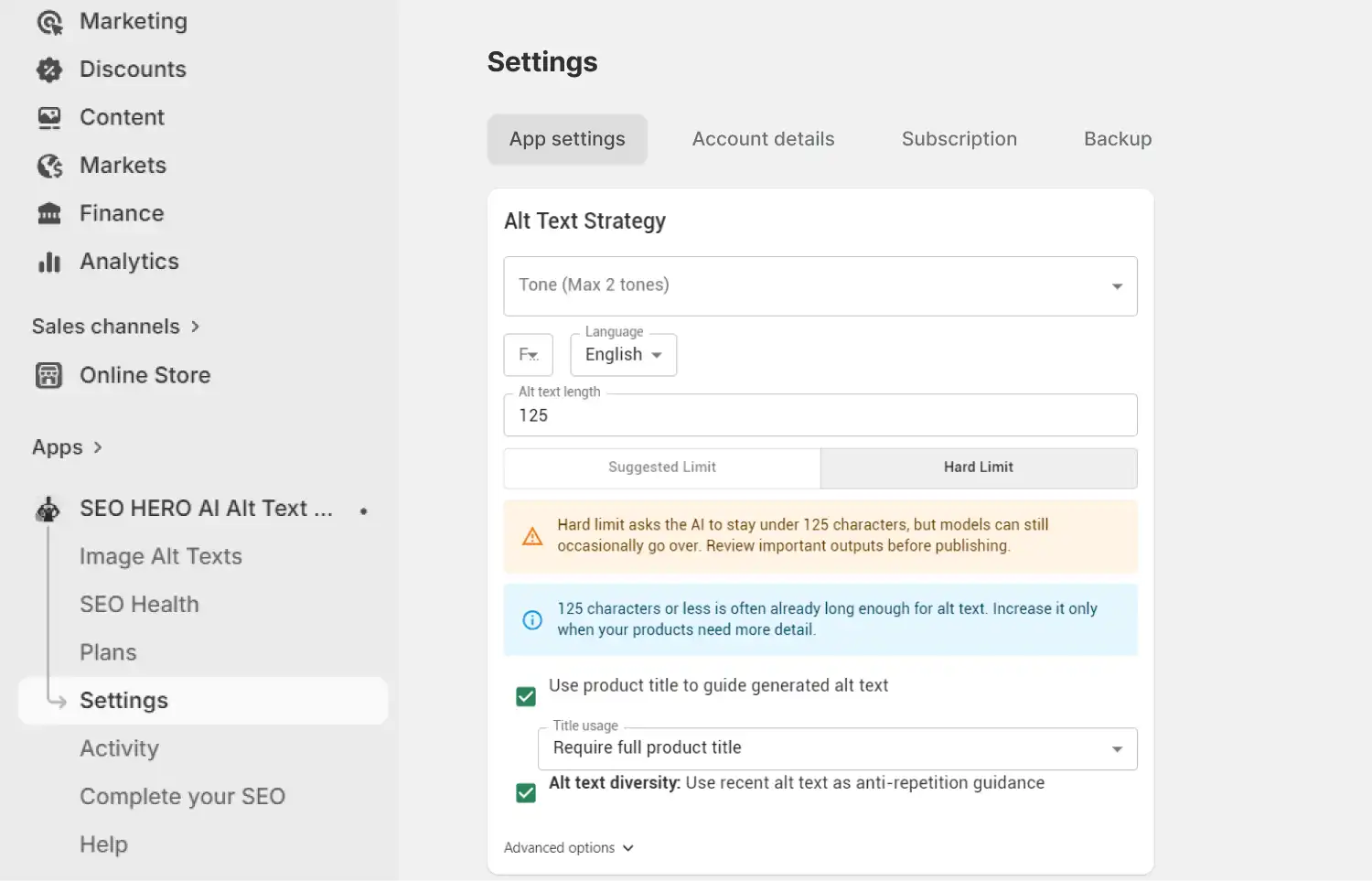
SEO HERO AI Alt Text Generator Alt Text Strategy settings for tone, language, length, and diversity

The Alt Text Strategy section controls the basic writing rules.

You can choose up to two tones, select the output language, and set the preferred alt text length. For most Shopify stores, 125 characters or less is a strong default because it keeps alt text short, clear, and easier to process.

SEO HERO AI Alt Text Generator also lets you choose between a Suggested Limit and a Hard Limit.

The Hard Limit asks the AI to stay under your character target, but AI models can still occasionally go over. That is why important outputs should still be reviewed before publishing.

You can also choose whether the AI should use the product title to guide the generated alt text. For example, you can require the full product title when the product name is important for context.

This helps when product names include meaningful details like color, model, material, size, or collection.

The app also includes Alt Text Diversity on eligible plans. This uses recent alt text as anti-repetition guidance, so similar products do not all sound the same.

Setting What It Controls Practical Recommendation
Tone The writing style of the generated alt text. Choose one or two tones that match your brand, not just what sounds trendy.
Language The language used for generated alt text. Match this to your store language and your SEO keyword language.
Alt text length The target length for each description. Start with 125 characters or less for most product images.
Product title usage How strongly the product title guides the output. Use this when product titles include useful attributes like color, material, or model.
Alt Text Diversity Anti-repetition guidance based on recent alt text. Use it when many products are visually similar or variant-heavy.

Step 4: Add SEO Context

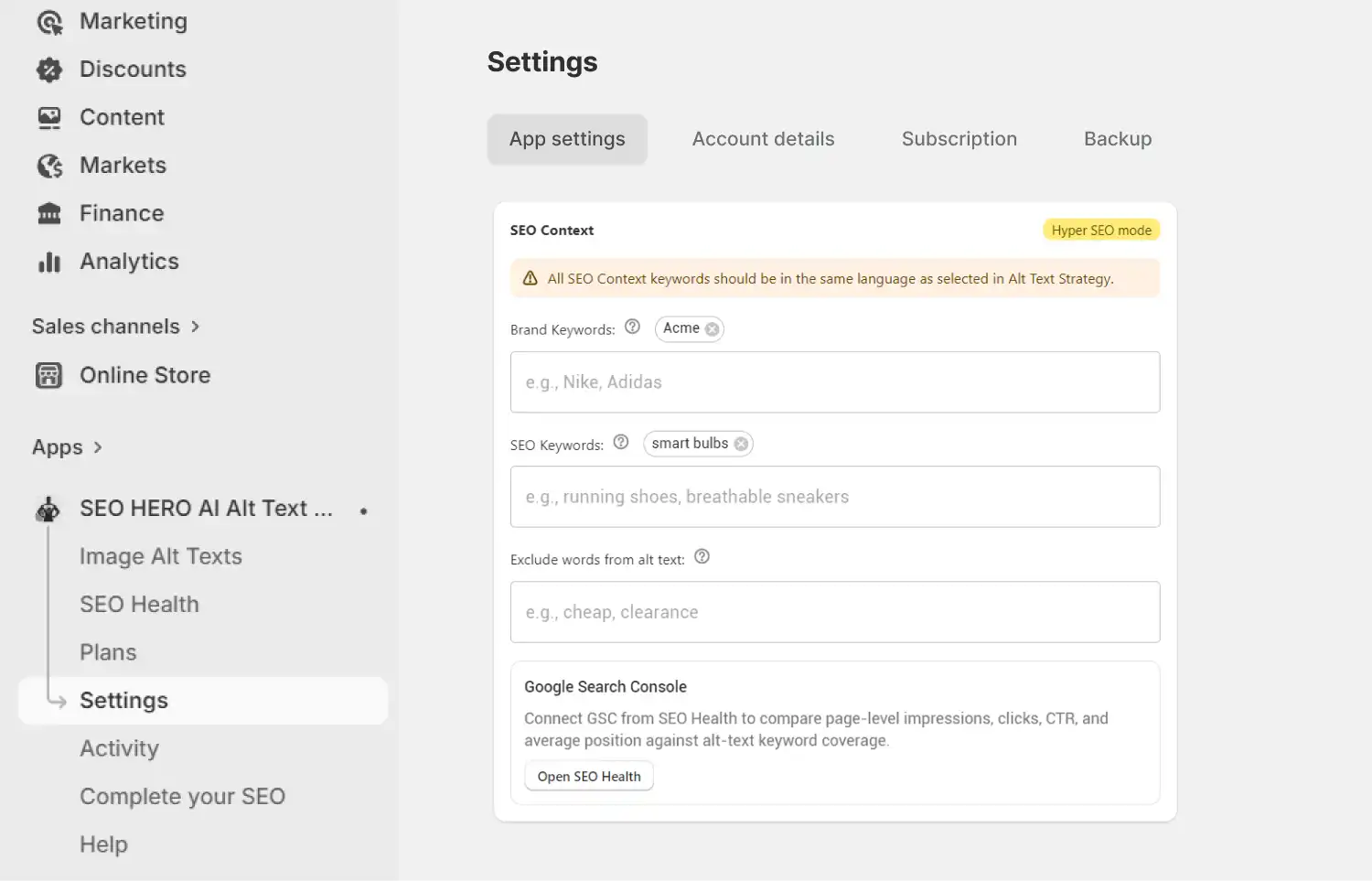
SEO HERO AI Alt Text Generator SEO Context settings for brand keywords, SEO keywords, and exclude words

The SEO Context section gives the app stronger search and brand signals.

You can add Brand Keywords, SEO Keywords, and Exclude Words.

Brand Keywords help the AI preserve important brand names or product terms. SEO Keywords help the AI understand what search phrases matter for the store. Exclude Words help prevent language you do not want in your alt text, such as “cheap,” “clearance,” or any off-brand wording.

There is also an important language rule. SEO Context keywords should be in the same language selected in Alt Text Strategy.

If your alt text language is English, your SEO keywords should also be in English. If your store uses French, Spanish, or German, keep the keyword set aligned with that language.

The app also includes a Google Search Console connection through SEO Health. This helps compare page-level impressions, clicks, CTR, and average position against alt text keyword coverage.

That makes the workflow more strategic than just filling empty fields.

SEO tip: Use keywords as context, not stuffing. The AI should include a keyword only when it naturally describes the product image.

Step 5: Use Advanced Context for better output
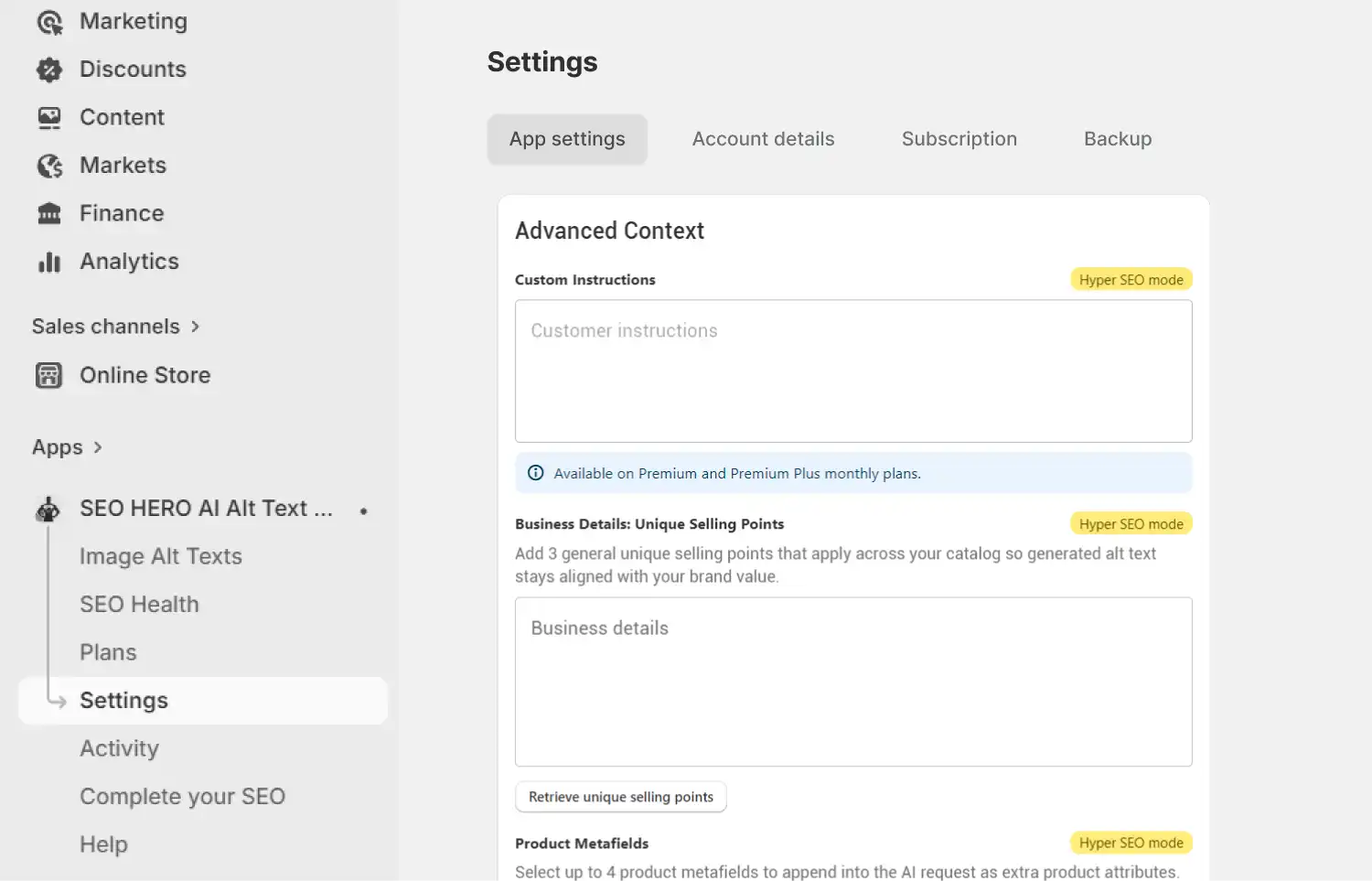
SEO HERO AI Alt Text Generator Advanced Context settings for custom instructions, business details, and metafields

Advanced Context is where the app becomes more useful for stores with richer product data.

Depending on your plan, you can add Custom Instructions to guide the AI. For example, you might tell it to avoid salesy language, mention product material when available, or keep descriptions concise and accessibility-friendly.

In the Custom Instructions area, use the instructions field to guide how the AI should write.

You can also add Business Details and Unique Selling Points. These are general value points that apply across your catalog, so generated alt text stays closer to your brand.

For stores using Shopify metafields, SEO HERO AI Alt Text Generator can use Product Metafields and Variant Metafields as extra context.

Product Metafields can add product-level details like dimensions, material, technical specs, or custom attributes. Variant Metafields can add details tied to a specific variant, such as size, color, mount type, or length.

This matters because the best alt text often depends on details that are not visible in the image alone.

A snowboard image, for example, may look simple. But if the product metafields include snowboard length or binding mount type, the AI has better context to write a more accurate description.

Step 6: Choose the Image Scope and overwrite behavior
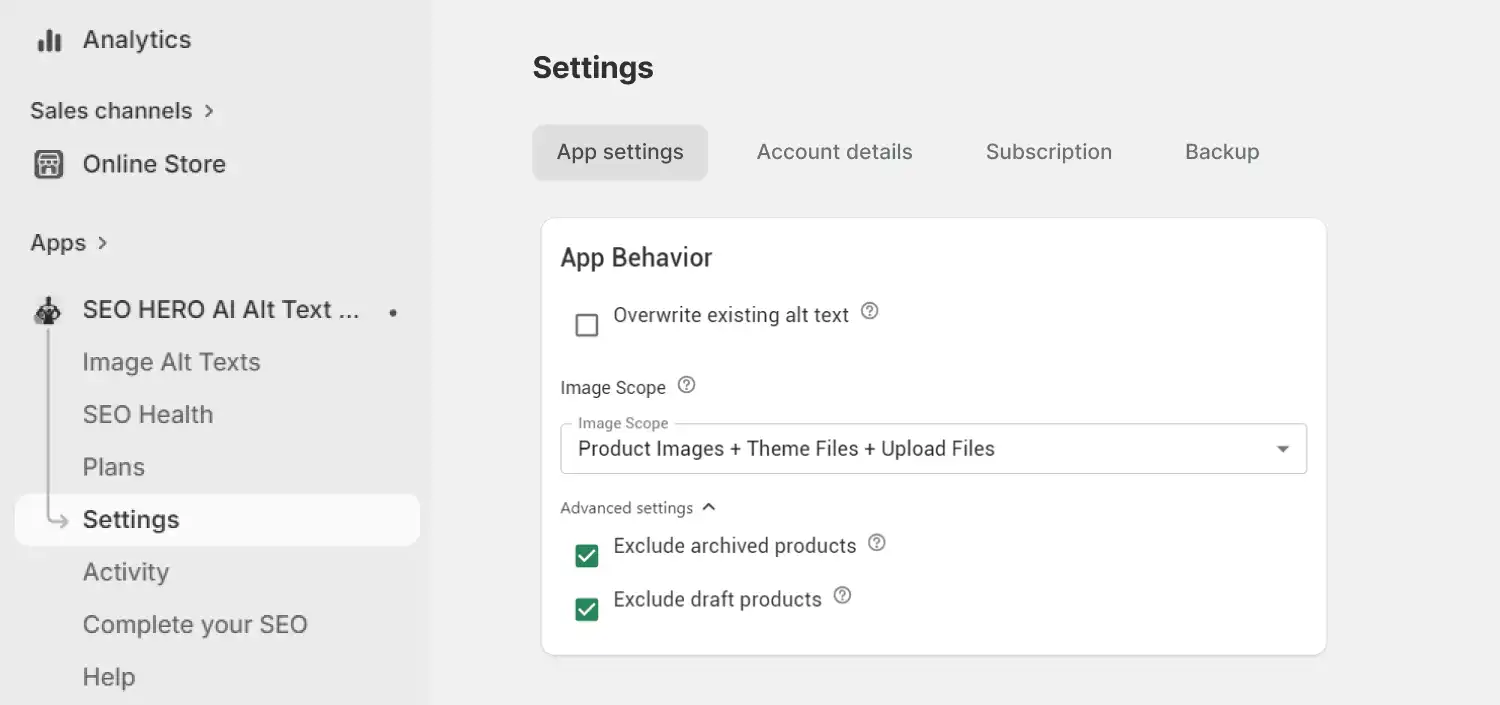
SEO HERO AI Alt Text Generator Image Scope and overwrite existing alt text settings

In App Behavior, you can control what SEO HERO AI Alt Text Generator should optimize.

The Image Scope setting can include Product Images, Product Images + Theme Files, or Product Images + Theme Files + Upload Files.

This matters because Shopify stores often have missing alt text outside product pages. Depending on your image scope, the app may help with product images and other files that are used across pages such as collections, blogs, or homepage sections.

You can also choose whether to overwrite existing alt text.

For a first cleanup, we usually recommend being careful. If a store already has strong alt text on important products, do not overwrite everything right away. Start with missing alt text first, then review whether older alt text should be improved.

Step 7: Choose the right AI Model
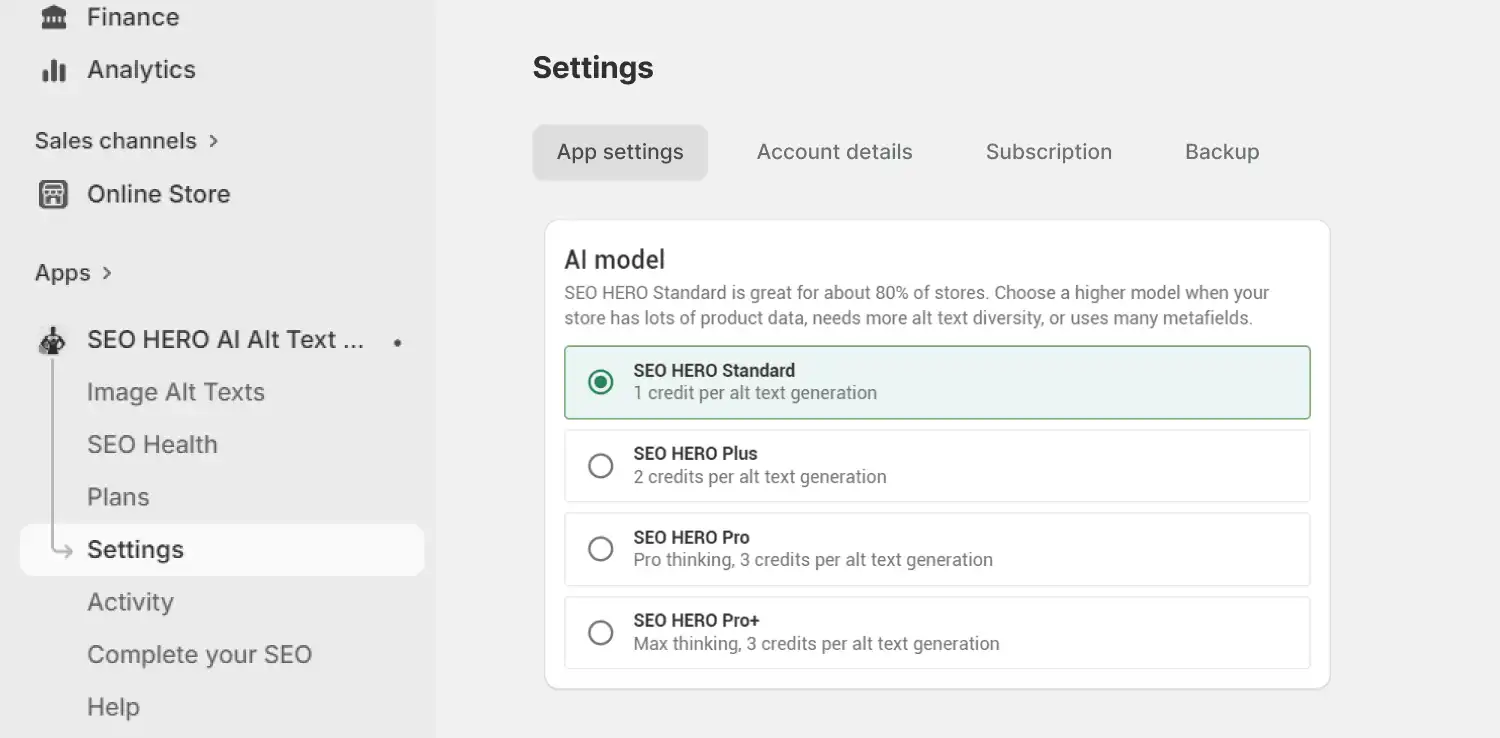
SEO HERO AI Alt Text Generator AI model options including Standard, Plus, Pro, and Pro Plus

SEO HERO AI Alt Text Generator includes different AI model options.

AI Model Credit Use Best Fit
SEO HERO Standard 1 credit per alt text generation Most normal Shopify catalogs.
SEO HERO Plus 2 credits per generation Stores that need better variation or more context.
SEO HERO Pro 3 credits per generation Complex products, rich data, or more careful output.
SEO HERO Pro+ 3 credits per generation Maximum thinking for complex catalogs.

SEO HERO Standard is a good fit for most stores. The app notes that Standard works well for about 80% of stores.

Use a higher model when your products are complex, your store uses many metafields, or you need more varied outputs across similar products.

Step 8: Run Live Preview before publishing
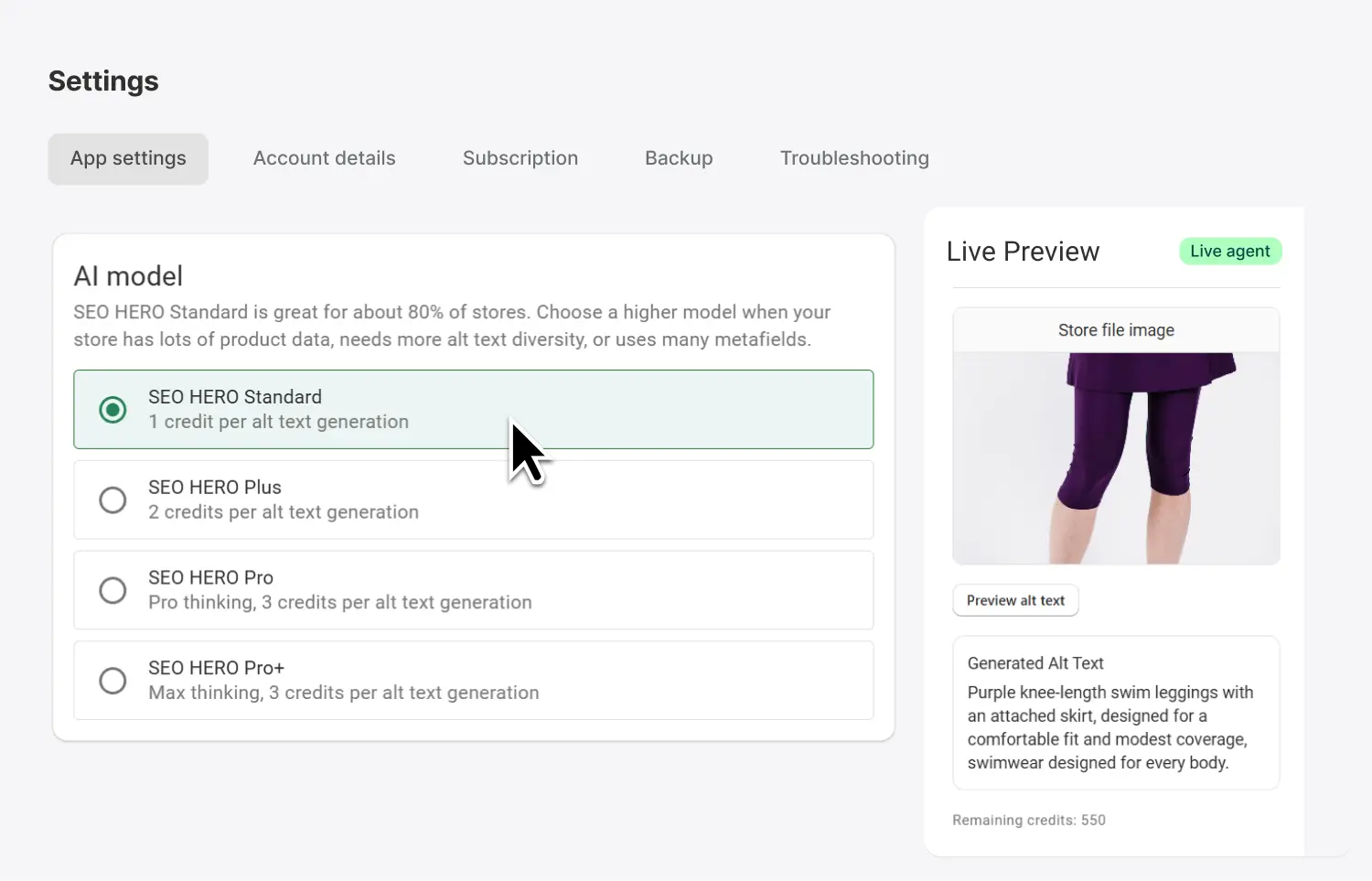
SEO HERO AI Alt Text Generator Live Preview for testing generated alt text before bulk publishing

The app includes a Live Preview area.

This lets you test a sample product and preview the generated alt text before applying the strategy more broadly. The preview helps you check the output before you spend credits on a larger run.

This step matters.

A preview can quickly show whether your tone, language, keywords, length limit, product title usage, and Advanced Context are working together.

If the output feels too generic, too long, or too repetitive, adjust the strategy before generating alt text in bulk.

That saves time and prevents cleanup later.

Step 9: Process missing alt text or run your bulk cleanup
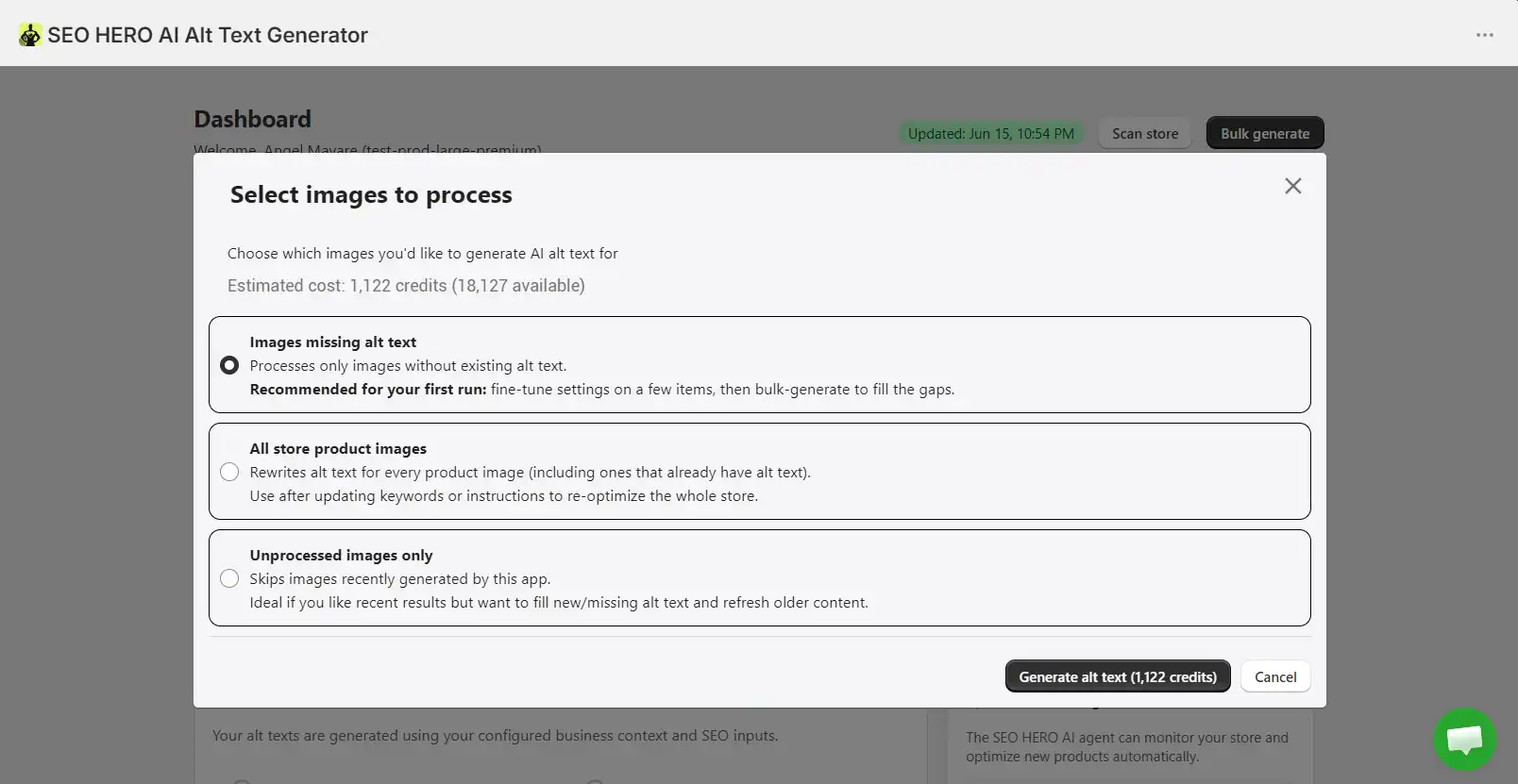
SEO HERO AI Alt Text Generator bulk cleanup for missing Shopify image alt text

After your settings are ready and Live Preview looks good, move into generation.

For most stores, the safest first pass is missing alt text.

Do not overwrite everything right away unless you are confident your existing alt text is weak or outdated.

Start with the biggest gap, review a sample, then apply. If your store has a large catalog, work in controlled batches instead of trying to fix everything at once.

This gives you the speed of AI without losing control.

Step 10: Use Auto-Pilot Agent for future new products
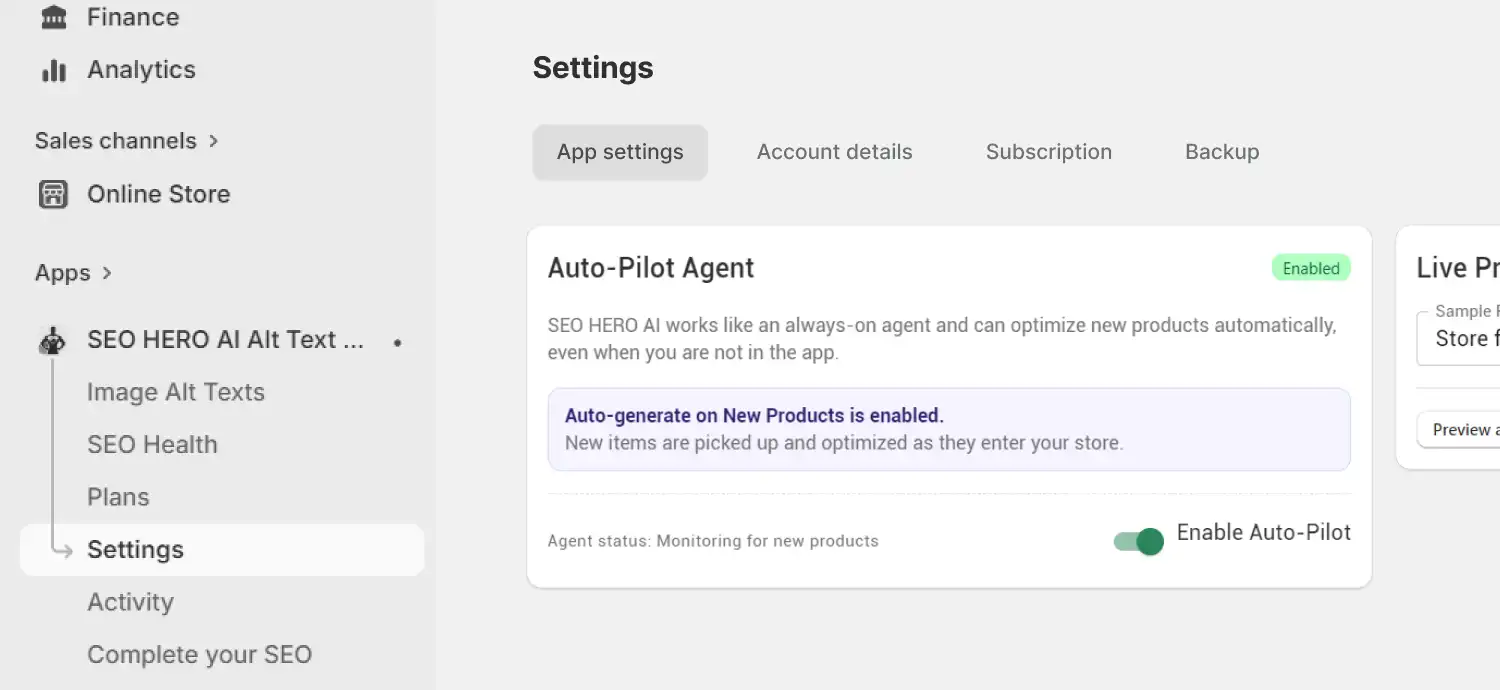
SEO HERO AI Alt Text Generator Auto-Pilot Agent for automatic new product alt text optimization

Once your setup is tested, you can use Auto-Pilot Agent.

Auto-Pilot Agent is SEO HERO AI Alt Text Generator’s always-on automation feature. It can optimize new products automatically, even when you are not inside the app.

In Settings, the Auto-Pilot Agent shows its current status. If it is paused or disabled, new products will not be optimized automatically.

Auto-Pilot Agent is available on Premium and Premium Plus plans.

This step should come after strategy and preview, not before.

That way, new product alt text follows a tested setup instead of an unreviewed one.

Step 11: Use Diagnostics if something looks wrong

If alt text does not appear as expected, the app includes Diagnostics.

Diagnostics can help with sync checks and recovery guidance. Support-only or advanced diagnostic tools may also be available when deeper investigation is needed.

This is useful because sometimes the issue is not the AI output. The issue can be a sync delay, a theme output problem, or alt text that was generated but not reflected in Shopify yet.

For large stores, this matters a lot.

A good alt text workflow should not only generate text. It should also help you confirm that the text made it into Shopify correctly.

Generate Shopify Alt Text Without Editing Every Image by Hand

If your store has hundreds of missing image descriptions, SEO HERO AI Alt Text Generator helps you configure your strategy, preview the output, and generate useful product alt text faster. Start with missing alt text first, then use Auto-Pilot Agent to keep new products covered.

Manual vs CSV vs AI: Which Shopify Alt Text Method Should You Use?

There is no single best method for every Shopify store.

The right method depends on your catalog size, your team, your product data, and how much control you need before changes go live.

If your store only has a few products, manual editing may be enough. If your store has hundreds or thousands of product images, manual editing becomes slow fast.

CSV editing can help, but it works best when your team is comfortable with spreadsheets and careful with formatting. One bad import can overwrite work you wanted to keep.

AI is the fastest option for large catalogs, but it still needs good settings and review. That is why the best workflow for most growing stores is a hybrid approach.

Method Best For Pros Watch Out For
Manual editing Small stores, best sellers, homepage images, and important collection banners. Maximum control and easy review. Too slow for large product catalogs.
CSV editing Teams that already manage product data in spreadsheets. Useful for structured bulk updates. Easy to break formatting, miss image fields, or overwrite existing alt text.
AI generation Large catalogs, missing alt text cleanup, and repeated product upload workflows. Fast, scalable, and easier to keep consistent. Needs strong settings, Live Preview, and sample review before publishing.
Hybrid workflow Most growing Shopify stores. Balances speed, quality, and control. Needs a clear process so the team knows what gets automated and what gets reviewed.

For most Shopify merchants, the best answer is hybrid.

Use manual editing for a few high-value images where the wording really matters. Use SEO HERO AI Alt Text Generator to handle the heavy lift for missing alt text and bulk cleanup. Then use Live Preview and sample review to protect quality before making larger changes.

Once the setup is tested, Auto-Pilot Agent can help keep future new products covered on eligible plans.

Best practical workflow: Manually review your most important products, use AI for the large cleanup, and use automation only after your settings are tested.

This keeps the process simple.

You avoid spending hours writing repetitive alt text by hand. You also avoid blindly publishing AI output without checking it first.

That balance matters because Shopify alt text is not just a field to fill. It is product data. It should be clear, accurate, and useful.

Shopify Alt Text Best Practices by Image Type

Good alt text changes based on the image.

A product image is not the same as a lifestyle photo. A variant image is not the same as a homepage banner. This is why one fixed template often fails.

The W3C alt decision tree gives a helpful rule of thumb. If an image adds meaning, describe that meaning. If it is decorative or redundant, empty alt text may be better. You can review that accessibility guide here: W3C Alt Decision Tree.

Simple test: Ask yourself what a shopper would miss if the image disappeared. That missing meaning is usually what your alt text should describe.

Main product images

Main product images should describe the product clearly. Include the product type, color, material, and one important visible detail when it helps.

Instead of writing “product image,” write something like “black leather tote bag with gold zipper and structured handles.”

This gives shoppers useful context and helps search engines understand what the image shows.

Variant images

Variant images should stay simple.

If the product is the same but the color changes, you do not need to write a brand-new long description every time. Use the product name and the variant detail.

For example, “classic cotton hoodie in forest green” is better than repeating the full product description for every color.

Lifestyle images

Lifestyle images should explain the product in use.

A product on a white background tells one story. A product in a room, on a model, or in an outdoor setting tells another.

For example, “outdoor patio set arranged on a small backyard deck” is more useful than “patio furniture image.”

Collection and blog images

Collection images should describe the theme of the collection when the image helps explain the page.

For a collection banner, “spring linen clothing collection in soft neutral colors” is more helpful than “banner image.”

Blog images should describe what the image adds to the article. If the image supports a tutorial, comparison, or example, make that clear in the alt text.

Decorative images

Not every image needs descriptive alt text.

If an image is only decorative, like a background shape, divider, texture, or visual flourish, it may be better to use empty alt text with alt="".

This helps screen reader users skip images that do not add meaning.

Best practice: Alt text should help people first. If it is only there for keywords, it probably needs to be rewritten.

What to avoid

Avoid filler phrases like “image of” or “picture of” unless they are truly needed. Most of the time, they waste space.

Also avoid keyword stuffing. Alt text should not read like a list of search terms.

A bad example would be “black boots leather boots women boots stylish boots winter boots boots sale boots Canada.”

A better version is “women’s black leather ankle boots with block heel and side zipper.”

The better version is still useful for SEO, but it reads like a real description.

A Simple Bulk Cleanup Workflow for Shopify Stores

In our setup wizard data, bulk alt text generation was the most selected current feature interest, with 43% of merchants choosing it. That makes sense: once a catalog gets large, the bottleneck is not knowing what alt text is. The bottleneck is doing it at scale.

If your store already has a lot of products, do not start by generating alt text for everything.

Start with a cleanup plan.

The safest workflow is to find gaps first, protect important products, generate in controlled batches, review samples, and then apply changes.

Best first move: Fix missing alt text before rewriting alt text that already exists. This gives you the biggest coverage win with the lowest risk.

A one-click bulk update sounds great until it overwrites strong hand-written alt text with weaker copy.

The goal is not just speed.

The goal is better coverage with fewer mistakes.

Prioritize the images that matter most

Not every image has the same value. Your best-selling products, product images with no alt text, and important collection visuals should usually come before low-traffic or decorative images.

Priority Image Group Why It Comes First
First Images with no alt text This is the biggest coverage gap and the safest place to start.
Second Best-selling products These pages usually have the highest business value.
Third Collection hero images These images support navigation, context, and shopper intent.
Fourth Variant-heavy products These are easy to make repetitive, so they need cleaner rules.
Fifth Blog and guide images These support educational SEO content and long-form articles.
Last Theme and uploaded files Some are meaningful, but some may be decorative and should be reviewed carefully.

Use controlled batches

If your store has hundreds or thousands of images, avoid trying to fix everything in one pass.

Start with a smaller batch. Check the output. Look for wrong colors, wrong materials, missing product types, repeated phrasing, or keyword stuffing.

If the sample looks good, expand the batch.

If the sample looks weak, go back to Settings and improve your Alt Text Strategy, SEO Context, Advanced Context, or AI model before running more generations.

Be careful with overwrite settings

Overwrite settings matter.

If your Shopify store already has useful alt text on important products, do not overwrite it just because you can.

Start with missing alt text first. Then decide whether older alt text needs improvement.

For older descriptions, look for vague text like “product image,” keyword-stuffed text, repeated variant descriptions, or alt text that no longer matches the product.

Review before scaling

Bulk generation is powerful, but review is what keeps it safe.

Before applying a large batch, spot-check your top products and a few random products from different collections.

Read the alt text like a customer would hear it. If it sounds natural and accurate, you are in good shape.

If it sounds like AI filler, fix the settings before continuing.

Safe bulk rule: Generate fewer images first, review the output, then scale. A five-minute review can save hours of cleanup later.

Turn cleanup into a repeatable process

The best Shopify alt text workflow is not just a one-time cleanup.

It should become part of how you add products.

Once your settings are tested, Auto-Pilot Agent can help keep future new products covered on eligible SEO HERO AI Alt Text Generator plans.

That is where the workflow starts to compound. You stop treating alt text as a backlog and start treating it as part of product publishing.

Common Shopify Alt Text Problems and How to Fix Them

Even when you add alt text, issues can still happen.

The good news is that most Shopify alt text problems are easy to spot once you know what to look for.

The biggest mistake is treating alt text like a keyword field instead of a useful image description.

Rule of thumb: If the alt text would sound strange when read out loud by a screen reader, it probably needs to be rewritten.

Generic AI output

The first common problem is generic AI output.

If every image starts with “a product image of” or “a photo showing,” your setup needs more context.

This usually means your Alt Text Strategy, SEO Context, Advanced Context, or product data is too thin.

Instead of accepting generic output, adjust your settings. Add better brand keywords. Use product title guidance when the title includes useful product details. Add Custom Instructions if your plan supports it. Use Product Metafields and Variant Metafields when they contain important product information.

The goal is to help the AI describe the actual product, not just the fact that an image exists.

Keyword stuffing

The second problem is keyword stuffing.

Alt text should not read like a list of search terms.

Bad example: black boots leather boots women boots stylish boots winter boots boots sale boots Canada.

Better example: Women’s black leather ankle boots with block heel and side zipper.

The better version is still useful for SEO, but it reads like a real description.

Use SEO keywords as context, not as a script. If a keyword does not naturally describe the image, do not force it in.

Repeated variant descriptions

Variant images can get repetitive fast.

If a product has eight colors, you do not need eight long descriptions that all say the same thing.

Keep variant alt text simple. Use the product name and the variant detail.

For example, “classic cotton hoodie in navy blue” is better than repeating the full hoodie description for every color.

If you notice too much repetition, review your Alt Text Diversity settings if your plan supports that feature.

Alt text that does not match the image

Wrong alt text is worse than missing alt text.

If an image shows a brown sandal but the alt text says “black leather boot,” the description creates confusion for shoppers and search engines.

This can happen when product data is messy, when variants are not clearly separated, or when old alt text gets copied across multiple products.

Before running a large cleanup, test a small batch. Check a few products from different collections. Look for wrong colors, wrong materials, wrong product types, and missing variant details.

Theme output issues

Sometimes the alt text is saved in Shopify, but the live theme does not show it correctly.

This can happen with custom Liquid code, background images, lazy-loading scripts, app-controlled galleries, or custom theme sections.

If the alt text looks correct in the app but does not appear on the storefront, the problem may be theme output or sync behavior.

That is where Diagnostics and support can help. Diagnostics can help with sync checks and recovery guidance, while deeper support tools may be used when a store needs more investigation.

Over-describing simple images

Alt text should be helpful, not exhausting.

You do not need to describe every shadow, angle, background detail, or tiny visual element unless it matters to the shopper.

For most Shopify product images, one clear phrase or short sentence is enough.

Best fix: Keep alt text specific, short, and accurate. Describe what matters about the product, then stop.

Good alt text should feel invisible when it works. It helps people understand the image without slowing them down.

How to Measure Whether Alt Text Is Helping

Alt text is not always easy to measure by itself.

That is normal.

Image SEO is part of a bigger system. Product titles, product descriptions, filenames, page speed, collection content, internal links, image quality, and crawl timing can all affect performance.

Still, you can track whether your Shopify alt text workflow is moving in the right direction.

Best mindset: Measure alt text as a coverage and quality improvement first. Then watch SEO signals over time.

Start with coverage

The first thing to measure is simple: how many images are missing alt text before and after cleanup?

This is the easiest win because it does not require waiting for Google to recrawl your store.

If you started with 900 missing product image descriptions and reduced that to 80, your image data is already in better shape.

Track Google Search Console trends

After coverage, watch Search Console over several weeks.

Look at impressions, clicks, click-through rate, and average position for product pages and image-heavy pages. Do not expect results overnight.

Google needs time to crawl your updated pages, understand the new context, and reflect changes in search data.

SEO HERO AI Alt Text Generator’s SEO Health connection can help compare page-level impressions, clicks, CTR, and average position against alt text keyword coverage.

Watch image search and product-page signals

If your products are visual, image search can matter.

For example, fashion, jewelry, furniture, home decor, beauty, sports gear, art, and accessories often rely heavily on images during the buying process.

When those images have clear descriptions, search engines and assistive tools get better context.

Merchants also asked for better reporting. In future feature interest responses, Image SEO Audit was the top request at 39%, followed by SEO Keyword Analytics at 29% and Google Search Console plus image sitemap integration at 28%.

Metric Where to Check What to Look For
Alt text coverage Your app dashboard or product image review workflow Fewer images missing useful alt text.
Product page impressions Google Search Console More visibility for product pages after updates are crawled.
Image search clicks Google Search Console image search filter More image-driven discovery for visual products.
Click-through rate Google Search Console Better CTR when page relevance and search appearance improve.
Workflow time saved Your team process Less time spent manually writing or fixing repetitive image descriptions.

Give it enough time

Do not judge SEO impact after two days.

A better window is four to eight weeks, especially if your store has many products and Google crawls some pages less often.

During that time, avoid changing too many other SEO elements at once. If you rewrite product titles, change URLs, update descriptions, compress images, and generate alt text all at the same time, it becomes harder to know what caused the movement.

Measure workflow improvements too

SEO is not the only value.

For many Shopify stores, the biggest win is operational. Your team stops leaving alt text for later. New products launch with better image context. Large batches become easier to manage.

If your store adds products every week, this matters.

A one-time cleanup fixes the current problem. A repeatable workflow keeps the problem from coming back.

Simple tracking idea: Create a monthly note with three numbers: images missing alt text, product pages gaining impressions, and time spent on image SEO. If coverage improves and time drops, the workflow is working.

Turn Shopify Alt Text Into a Repeatable SEO Workflow

SEO HERO AI Alt Text Generator helps you move from one-time cleanup to an ongoing workflow. Configure your strategy, preview output, process missing alt text, and use Auto-Pilot Agent on eligible plans to keep future new products covered.

Try This Shopify Alt Text Quality Checker

Before you generate alt text across your whole store, it helps to test a few examples.

This simple checker gives you a quick quality score based on length, clarity, repeated words, filler phrases, and keyword stuffing risk.

It is not a full SEO audit. It is a fast way to spot weak alt text before you use it across a Shopify catalog.

Shopify Alt Text Quality Checker

Paste one alt text example below. The checker will score it and suggest what to improve.

    Use this as a quick review tool. Always check the final alt text against the actual product image before publishing.

    A good score does not mean the alt text is perfect.

    It still needs to match the image. If the product color, material, variant, or product type is wrong, rewrite it before publishing.

    The best Shopify alt text is short, accurate, and useful. It should help shoppers understand the image without feeling like a keyword list.

    The Best Way to Generate Alt Text in Shopify

    Generating alt text in Shopify is easy when you have ten images.

    It gets harder when you have hundreds.

    The best approach is to use the right method for the right job. Add alt text manually for a few key images. Use CSV workflows if your team already works from clean product spreadsheets. Use SEO HERO AI Alt Text Generator when you want a structured workflow for strategy, product context, previewing, bulk cleanup, and future new product automation.

    The real goal is not just to fill an empty field.

    The goal is to make your Shopify images easier to understand, easier to manage, and easier for search engines to connect with the right products.

    Best path: Start with missing alt text, test the output with Live Preview, review a small batch, then scale the workflow once your settings are working.

    If you are using SEO HERO AI Alt Text Generator for the first time, start with the first-time AI setup wizard if it appears. Then go to Settings and review your Alt Text Strategy, SEO Context, Advanced Context, Image Scope, overwrite behavior, AI model, and Live Preview.

    Once the output looks right, process missing alt text first.

    Do not overwrite everything unless you have a clear reason. Protect strong existing alt text, especially on best-selling products and pages that already perform well.

    After your setup is tested, Auto-Pilot Agent can help keep future new products covered on eligible plans.

    That is where the workflow becomes more powerful.

    You stop treating alt text as a backlog. You make it part of how products are published.

    Good alt text is short, clear, and accurate. It helps people first. It gives search engines better context second. And when you manage it with the right workflow, it stops being a tedious manual task.

    FAQs

    Does Shopify generate alt text automatically?

    Shopify does not auto-generate alt text for product images. If you don’t add alt text manually or with a tool, your images remain unoptimized for SEO and accessibility. Shopify provides the field to fill in, but the responsibility is on you. Some apps (like SEO HERO AI Alt Text Generator) automate this process so you don’t have to write alt text manually for hundreds of images.

    1. Go to Products → select a product
    2. Click the product image
    3. In the right panel, find Alt text field and type your description
    4. Save


    For bulk edits across multiple products, you’d manually repeat this or use an automation tool like SEO HERO AI Alt Text Generator, which processes all your images at once and suggests AI-generated descriptions based on your product details.

    The best approach combines relevance and speed:

    • Include the product name (what it is)
    • Add 1–2 key descriptors (color, size, material, style)
    • Keep it under 125 characters (readable and SEO-friendly)
    • Use automation for scale (manual alt text is slow for 100+ images)


    Tools like SEO HERO AI Alt Text Generator read your product title, description, and metafields to generate contextual alt text automatically, saving hours of manual work and ensuring consistency across your store.

    Shopify doesn’t have a native bulk alt text editor. Your options:

    1. Edit one by one (slow, impractical at scale)
    2. Use CSV import (limited; requires manual alt text prep first)
    3. Use an automation app (fastest; SEO HERO processes 100+ images in minutes)


    If you have more than 10–20 product images, automation saves days of work and reduces human error.

    SEO HERO (AATG) is a Shopify app that automatically generates SEO-optimized alt text for all your images—products, blog posts, theme files, and manual uploads. Unlike competitors that only handle product images, it works across your entire store. You choose your context (product metadata, keywords, tone), and the AI generates alt text in bulk. Available on the Shopify App Store.

    Auto-Pilot is a feature in SEO HERO AI Alt Text Generator (requires the Premium plan, $15/month or higher) that continuously monitors your store for new or untagged images and automatically generates alt text for them without manual intervention. You set your preferences once, and new images get alt text as soon as they’re uploaded. It’s the hands-off way to keep your store SEO-ready as you add products.

    Only if the existing alt text is poor or generic. Before overwriting:

    • Check if current alt text is descriptive and includes key terms
    • If it’s vague (“image 1,” “photo,” etc.), yes—replace it
    • If it’s solid, leave it
    • Auto-Pilot doesn’t overwrite by default; you control what gets updated


    When using SEO HERO AI Alt Text Generator, you can choose to skip images that already have meaningful alt text, so you’re not re-doing work that’s already done.

    Sweet spot: 8–15 words (50–125 characters).

    • Too short (1–3 words): “blue shirt” — misses context
    • Too long (20+ words): reads like spam, loses focus
    • Good example: “blue cotton button-up shirt with front pocket detail”


    Keep it descriptive enough that someone reading it would know what they’re buying. Screen readers cut off after ~125 characters, so stay within that limit.

    Yes, but naturally. Alt text should:

    1. Describe the image first (what someone sees)
    2. Include relevant keywords if they fit naturally


    Example:

    • ❌ Bad: “blue shirt blue shirt blue shirt buy now” (keyword stuffing)
    • ✅ Good: “blue cotton dress shirt, comfortable for business casual wear” (describes + includes searchable terms)


    SEO HERO AI Alt Text Generator lets you add context (keywords, tone, metafield info) so the AI generates alt text that’s both descriptive and keyword-aware without sounding forced.

    SEO Context includes inputs like Brand Keywords, SEO Keywords, Exclude Words, and SEO Health or Google Search Console context. Advanced Context includes richer guidance such as Custom Instructions, Business Details, Unique Selling Points, Product Metafields, and Variant Metafields.

    Not technically, but yes for SEO and accessibility:

    • Product images: Must (they’re searchable; customers see them)
    • Blog post images: Should (helps with article SEO and accessibility)
    • Theme/decorative images: Nice-to-have (logos, icons, illustrations can be marked as decorative)
    • Duplicate angles of the same product: Can use shorter alt text or mark as secondary


    If your goal is SEO traffic and accessible customer experience, aim to alt-text every product image and main blog image. SEO HERO AI Alt Text Generator handles this across your whole store—not just products.

    Start by checking coverage. Fewer images should be missing useful alt text. Then monitor Google Search Console over several weeks for changes in impressions, clicks, CTR, and image search visibility. Also track workflow improvements, like less time spent manually fixing product image descriptions.

    Share on Social Media:
    Picture of Mike
    Mike

    Hey, I’m Mike Belanger, a business enthusiast with over 15 years of experience in designing, web and app development, business management, digital marketing, customer psychology and optimizing businesses. I love making businesses grow and operate smoother.

    Table of Contents
    Generate Better Shopify Alt Text With SEO HERO AI Alt Text Generator